Drawing Tools for Traders: Levels, Alerts, and VWAP Bands
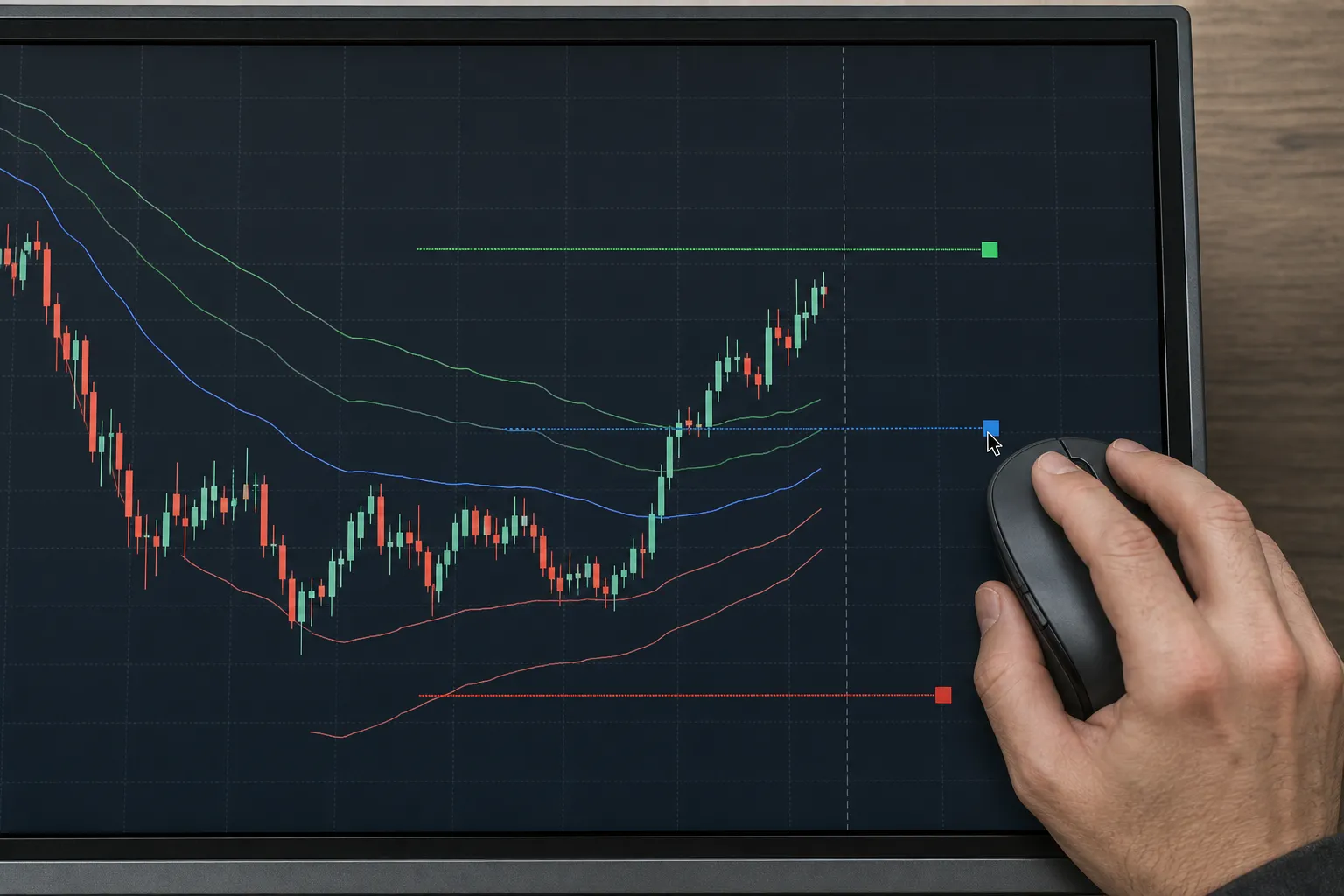
If your entries, stops, and targets live only in your head, your risk lives there too. Putting the plan on the chart turns guesswork into rules you can repeat, review, and improve.
This guide shows how to mark levels, add alerts, layer VWAP bands, and save layouts in TickerLists. You will go from a blank chart to a ready-to-trade plan you can review on desktop and phone.
Mark entry, stop, and target levels
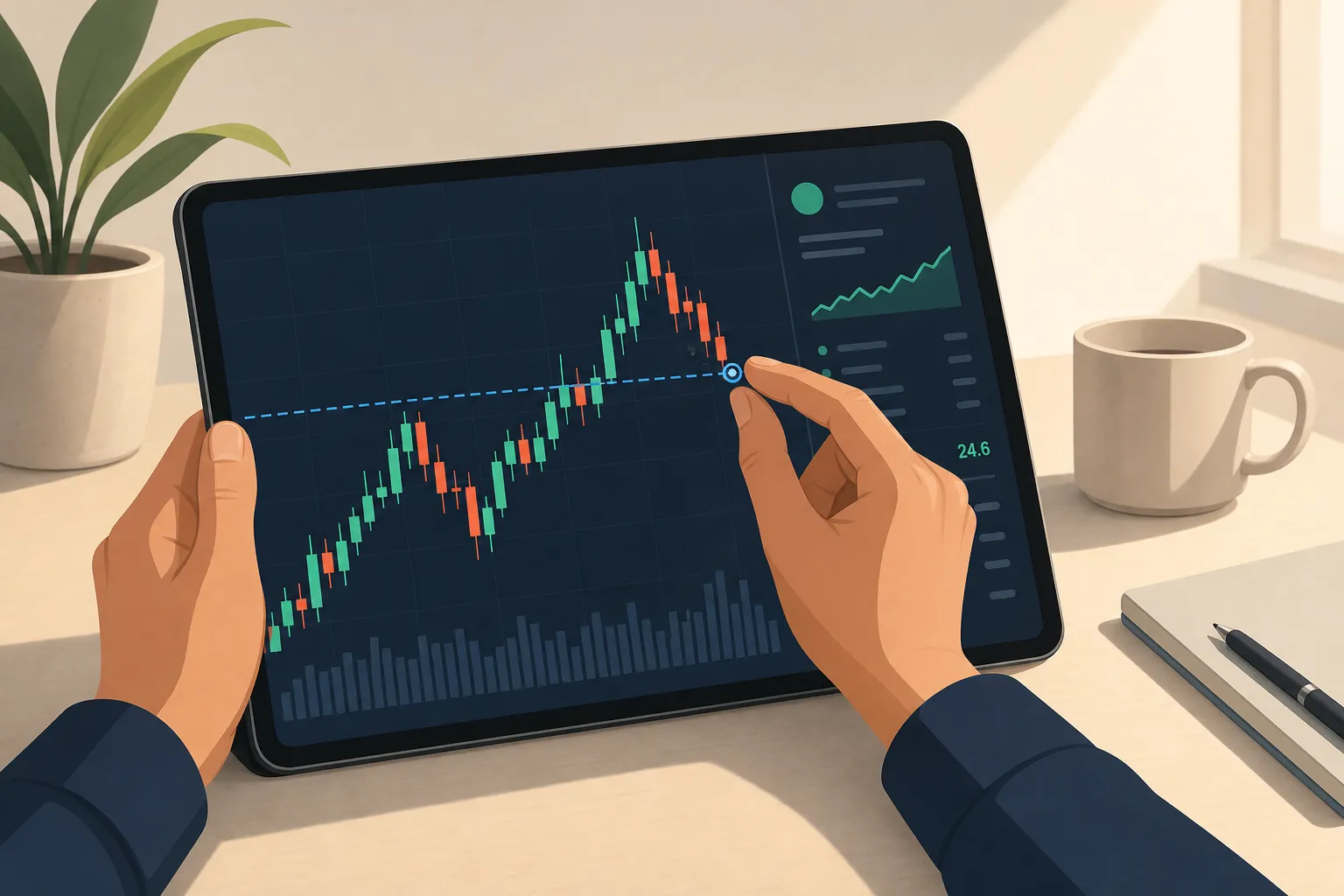
Start by getting your idea out of your notes and onto price. In TickerLists you can draw entry, stop, and target lines, drag to refine them, and see P/L at each level as price moves.
Step-by-step
- Open a symbol and pick a timeframe that matches your hold time. Intraday traders often use 1-minute or 5-minute bars. Swing traders can start on 30-minute, daily, or weekly. Turn on extended hours if you trade pre-market or after-hours in US stocks.
- Click the intended entry price and choose Entry to drop a line. Repeat for Stop and Target. Each line is anchored to price, so distance in points and dollars is visible without a separate calculator.
- Drag any line to adjust. As you move a level, watch P/L update at each mark. This makes it easy to check risk and reward before you commit.
- Use multi-chart layouts for context. For example, place a 1-minute chart top-left for execution, a 15-minute top-right for structure, and a daily bottom-left for bigger levels.
Concrete example
Suppose AAPL trades 187.20 on a 1-minute pullback.
- Entry: 187.30 on a reclaim of the prior 1-minute high.
- Stop: 186.80 below the pullback low that would invalidate the setup.
- Target: 188.50 near the morning high. Risk is 0.50, reward is 1.20, so reward-to-risk is 2.4:1. If you cap risk at $100, that is 200 shares at this stop distance.
With lines on the chart, you see P/L per share and total P/L update as price moves, so you can manage the trade against real numbers, not hopes.
Practical tips
- Place stops where the idea fails, not “just under the last candle.” A stop below the actual swing low or above the swing high keeps noise from knocking you out.
- Set the first target where other traders have a reason to act: prior highs/lows, VWAP, or a band. Stretch the second target only if momentum supports it.
- Do the markup during quiet periods. Rushing while price is moving fast usually produces tight stops or wishful targets.
- If you want a quick second opinion, use the entry check and odds button. It looks at today’s 1-minute chart and suggests an entry, stop, target, and the probability the target is hit first. Treat it as input, not a command.
Add alerts directly at price
Once levels are set, let alerts do the waiting. In TickerLists you can click the price axis to set unlimited alerts. That keeps you from babysitting a chart and missing other setups in your lists.
Step-by-step
- Hover at your level and click the price axis to create an alert. Place it a few cents before your entry if you want time to read the tape, or right on the line if you execute on touch.
- Name the alert clearly, for example "AAPL M1 pullback entry 187.30" or "ETH breakout confirm 3350." Descriptive names help when several alerts fire together.
- Drag alerts to fine-tune. You can stack multiple alerts around a zone to stage in or scale out. A common pattern is one 5 - 10 cents before entry, one at entry, and one just past the level for confirmation.
Why alerts improve execution
- They preserve focus while you scan other lists or review headlines.
- They support discipline. If price never touches your line, you skip the trade rather than chase.
- They work with extended hours. With live quotes in pre-market and after-hours for US stocks, alerts can catch early range breaks or headline spikes.
Use VWAP bands to frame risk
VWAP is the average price traded during the session. Bands around VWAP help you see when price stretches from that consensus. In TickerLists you can add VWAP with bands to any chart and use them to plan entries and exits with context.
Step-by-step
- Add VWAP with bands to your active chart. Keep the timeframe consistent with your plan. Intraday traders usually start with 1-minute or 5-minute bars.
- Align entries with structure. If you are buying a pullback in an uptrend, look for confluence between the lower band and a recent higher low. For shorts, look for the upper band near a lower high.
- Set targets where behavior changes. If price mean-reverts often, plan first scale at VWAP and second at the opposite band. If it trends, target prior swing highs/lows beyond the band.
Scenarios
- Mean reversion: A stock bleeds into the lower band on light volume after a morning pop. Plan an entry at the band, stop a few cents under the swing low, target VWAP first, then trail to the upper band if volume rebuilds.
- Trend day: Price rides above VWAP and pulls to the mid-band during lunch. Add near the band with a stop below the last higher low. Use the morning high as the next target, then trail under higher lows.
- Chop filter: If price whipsaws through VWAP, skip trades until it holds a band or a clear swing breaks. Bands keep you from forcing mean reversion when the market is undecided.
Save and sync your chart layouts
Good charts do not live on one screen. TickerLists saves lists, alerts, levels, and layouts to your account and syncs across devices. Phone-friendly charts with pinch-to-zoom make it practical to check levels on the go and still see P/L at each line.
Step-by-step
- Choose a layout count: one, two, or four charts. Lock in the timeframes you rely on every day and add VWAP where needed.
- Save the layout with a clear name like "Intraday Plan" or "Swing Prep." Your entries, stops, targets, and alerts persist across sessions.
- Open the same layout on your phone. Use pinch-to-zoom to verify price is approaching your level. Drag alerts a few cents if the market shifts after hours.
Workflow extras that help
- Watchlists with sections: Create unlimited lists with up to 200 symbols each, group them into foldable sections, and quick-switch with one key. Keep a main list plus a crypto list so you can flip from equities to coins without clutter.
- Company data and news: Day range, 52-week range, volume, market cap, P/E, next earnings date, a short profile, and headlines help you avoid trading into events blind.
- Real-time market data: Quotes are real-time or delayed depending on the exchange. Check the stamp on the chart so you know exactly what you are watching.
- Import watchlists: If you are moving from another platform, import TradingView exports with sections, or paste a list of tickers. It makes TickerLists a simple TradingView alternative for list management and live charts.
Common pitfalls and fixes
- Vague stops: "Below the low somewhere" is not a stop. Draw the line, place it where the idea fails, and set an alert a few cents above it.
- Targets with no context: If you ignore VWAP and prior highs/lows, you often aim too far. Use the nearest band or structure for the first exit.
- Alert overload: Unlimited does not mean useful. Keep one alert per decision. Entry approaching, stop approaching, and target approaching are enough for most trades.
- One layout for everything: Intraday and swing need different views. Save separate multi-chart layouts so you are not flipping timeframes mid-trade.
- Forgetting extended hours: With pre-market and after-hours quotes for US stocks, set alerts around those ranges. Many gaps start there.
If you share playbooks or do post-trade reviews with a team, record short screen videos after the close. To make them understandable on mute, use this guide to add subtitles to video online in minutes so your notes are readable on mobile without sound.
Key takeaways
- Draw entry, stop, and target lines first, then let the P/L at each level guide position size.
- Set price alerts at decision points so you act on plan, not impulse.
- Add VWAP with bands to frame risk and choose realistic, testable targets.
- Save multi-chart layouts and sync across devices to stay consistent.
- Use organized watchlists, company data, and live quotes to support your plan.
Trading well is planning well. With clear drawing tools, live charts, and stock price alerts mapped to your levels, TickerLists turns ideas into trades you can execute and review. Whether you track stocks, ETFs, indices, futures, forex, or crypto, the same process applies. Import your lists, add VWAP, and start drawing. The next improvement is one clean chart away.
FAQ
How do I place and adjust entry, stop, and target lines in TickerLists?
Click any price to add an entry, stop, or target line. Drag the line to fine-tune it. P/L updates at each level as you move them.
Can I set multiple stock price alerts on the same symbol?
Yes. You can set unlimited alerts and place several around one zone, such as pre-entry, entry, and scale-out levels.
Does TickerLists support VWAP with bands?
Yes. You can add VWAP with bands to any chart and use them to plan entries and targets in context.
Will my layouts and alerts sync to my phone?
Yes. Lists, alerts, levels, and layouts are saved to your account and sync across devices. Charts are phone-friendly with pinch-to-zoom.
Is market data in TickerLists real-time?
Market data is real-time or delayed depending on the exchange. The chart shows the timing so you know what you are viewing.
More from the blog
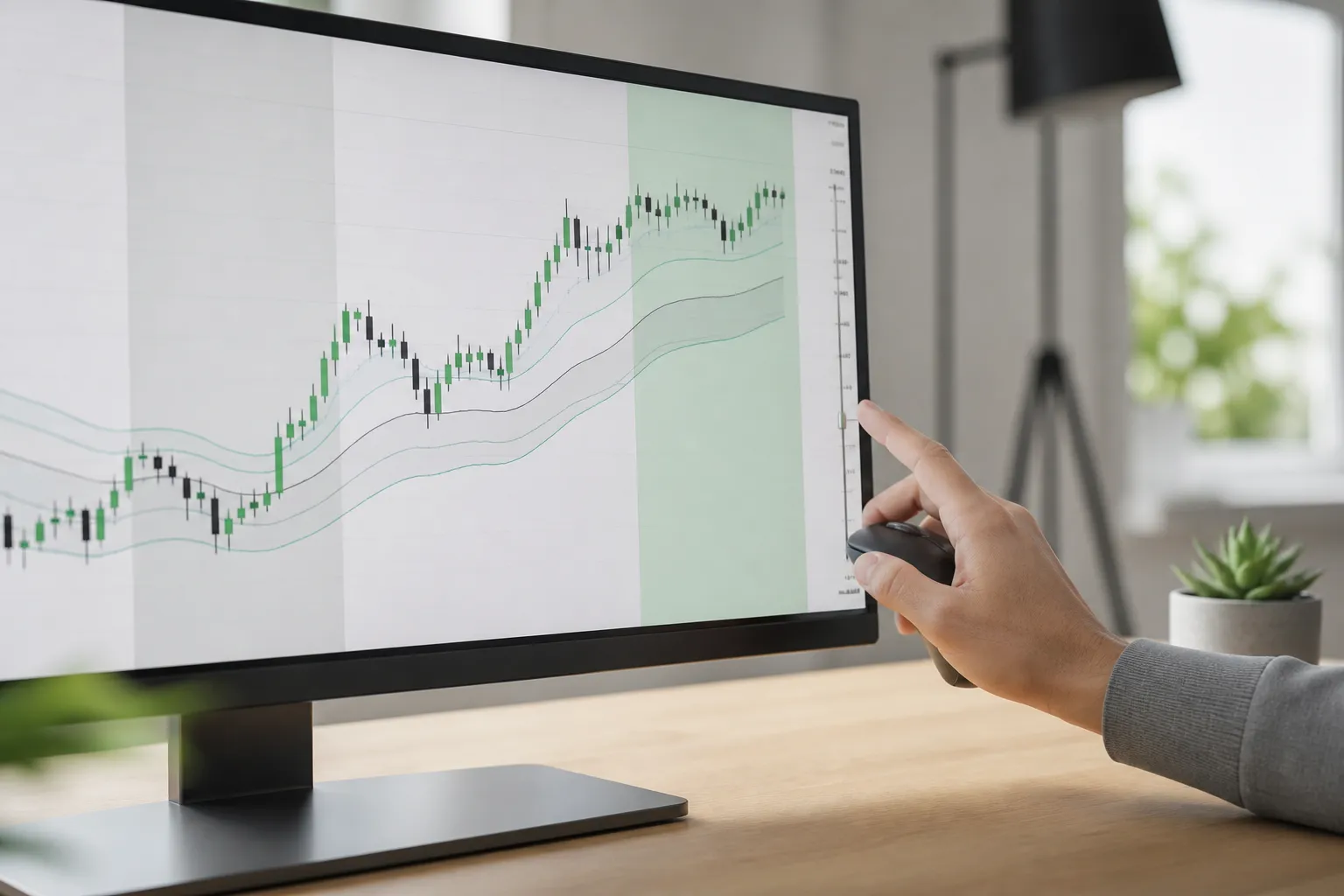
Live Stock Charts With Real-Time Candles and Extended Hours
See real-time stock charts with pre-market and after-hours, clear timeframes, and practical reads for gaps and levels. How TickerLists handles sessions.
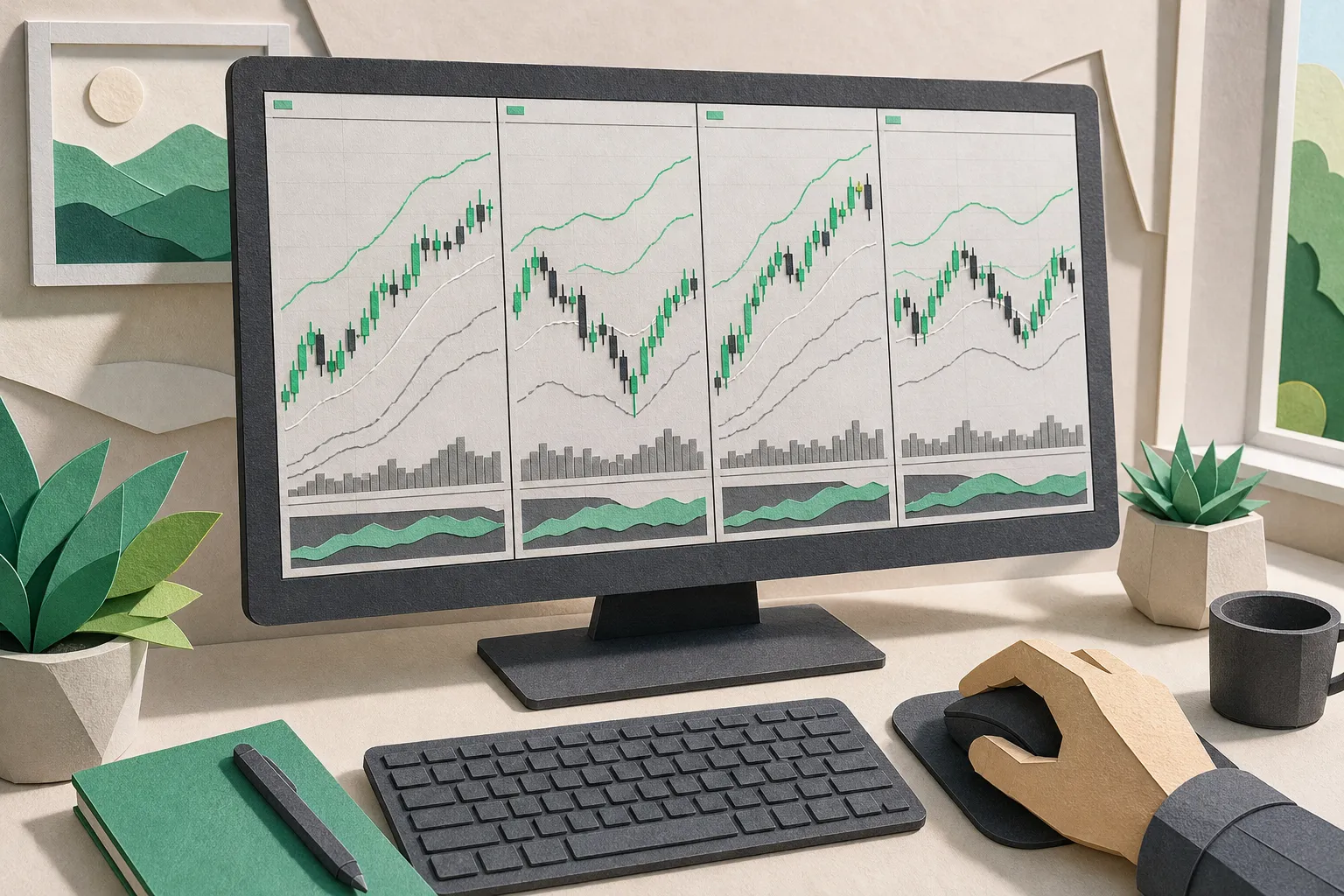
Index Charts That Matter: S&P 500, Nasdaq, Dow with VWAP
Read index charts the right way. Use VWAP, layouts, watchlists, and alerts in TickerLists to track the S&P 500, Nasdaq, and Dow with speed and clarity.
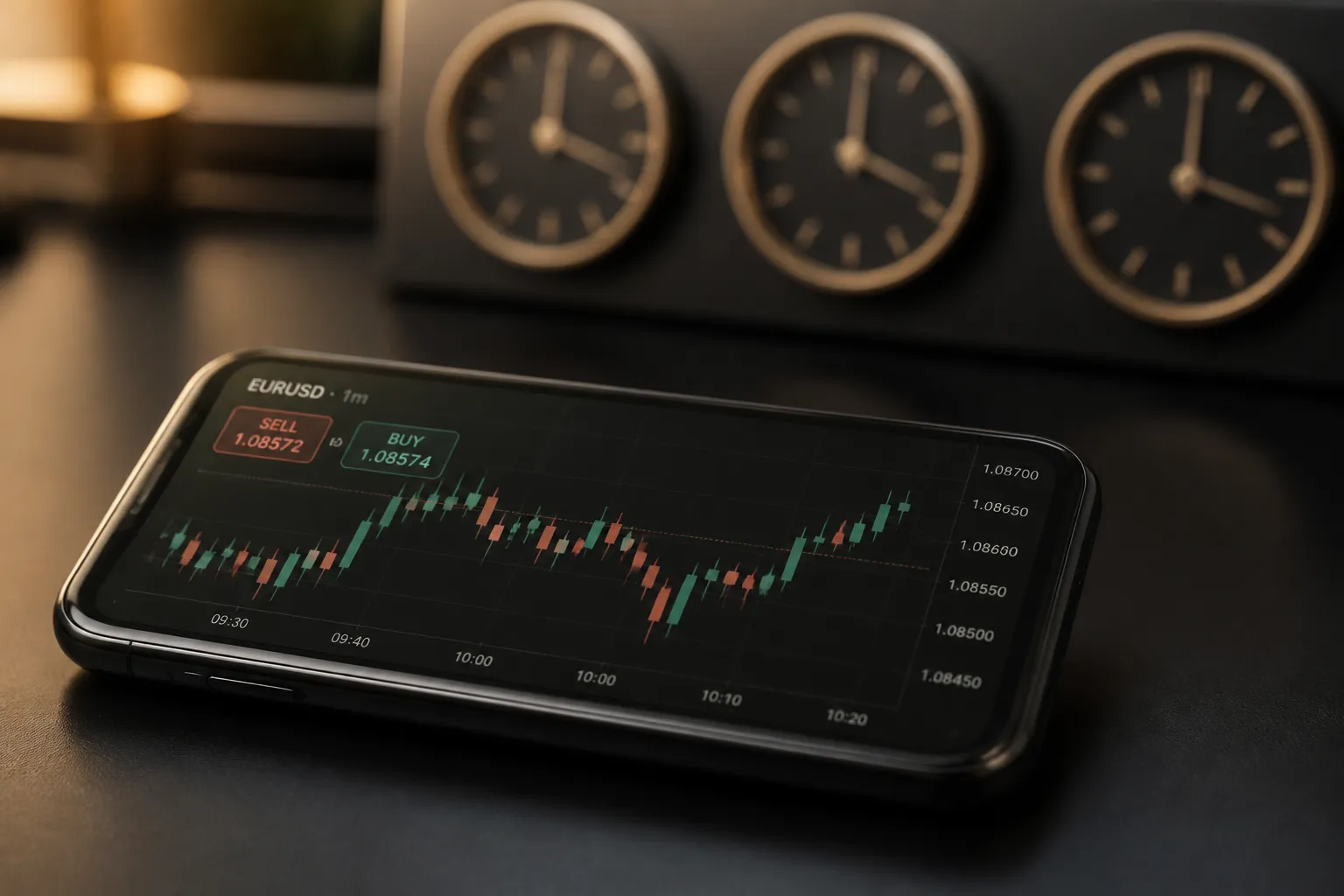
Forex Live Quotes: Sources, Latency, Sessions, and Alerts
See how forex live quotes are sourced, what latency to expect by session and connection, and how to track pairs with watchlists and synced price alerts.
Price-to-Earnings (P/E) Ratio: A Practical Guide for Traders
Learn what the P/E ratio shows, how to read it by sector and cycle, and how to view P/E beside live charts, alerts, and watchlists in TickerLists.